Every debate on Swevo starts the same way. Someone picks a question they care about, chooses who should argue the other side, and sets the stage for an audience to watch, vote and weigh in.
This guide walks through the whole Create Debate flow, one step at a time, so you can go from an idea to a submitted debate in a couple of minutes.
You need a Swevo debater account. Once you are signed in, open your dashboard and click Create Debate. You will find it in the top right corner and in the sidebar.
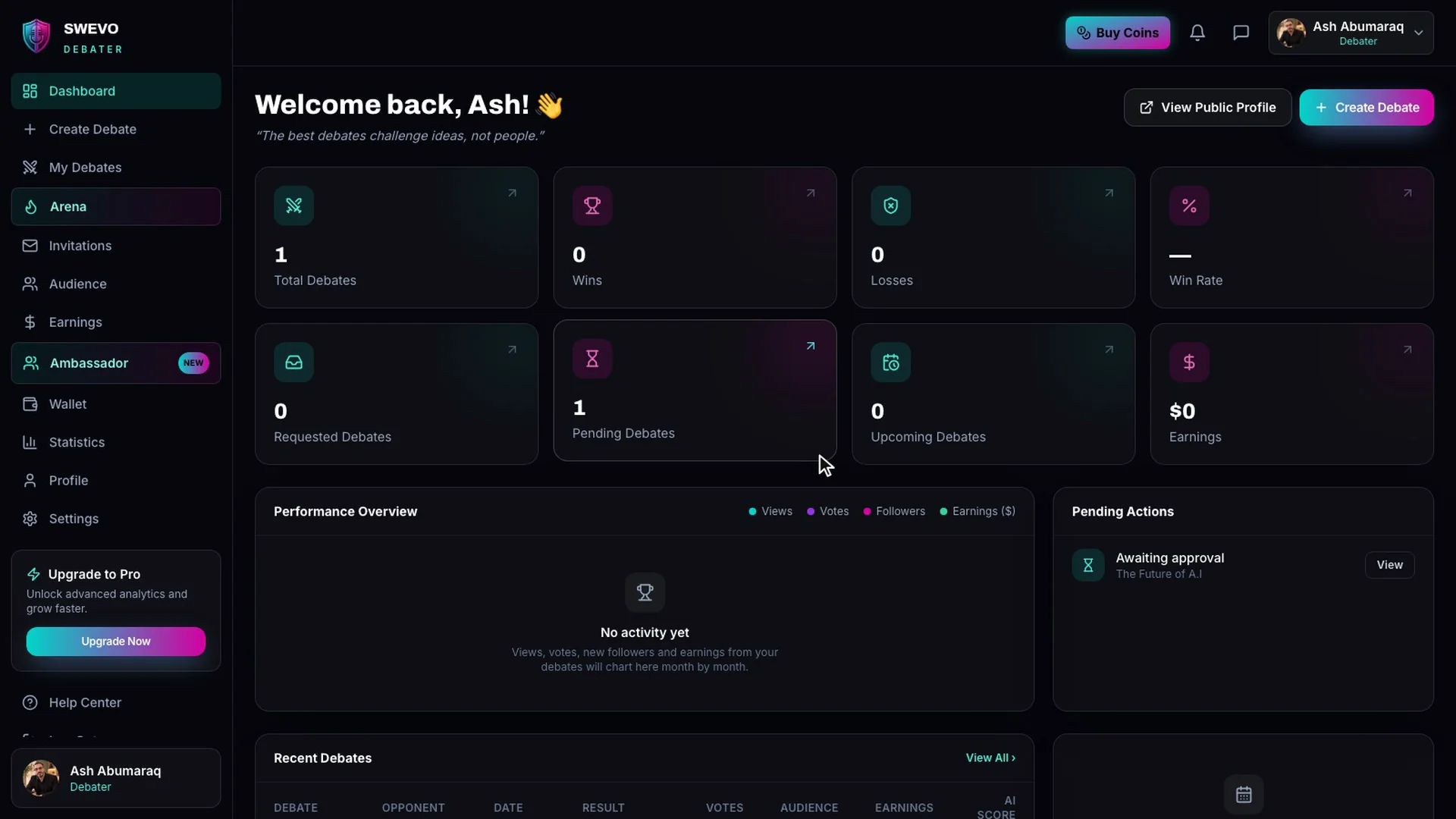
Two things make the next few minutes easier:
- A question with two clear sides. "Messi or Ronaldo: who's the greatest of all time?" works. "Football is interesting" does not, because nobody can argue against it.
- An idea of who you want to face. It can be a specific person or nobody in particular. Both work, as you will see in Step 1.
The wizard has five steps: Basic Info, Format, Questions, Rights & Terms, and Review & Submit. A summary panel on the right updates as you go, so you can always see what your debate looks like.
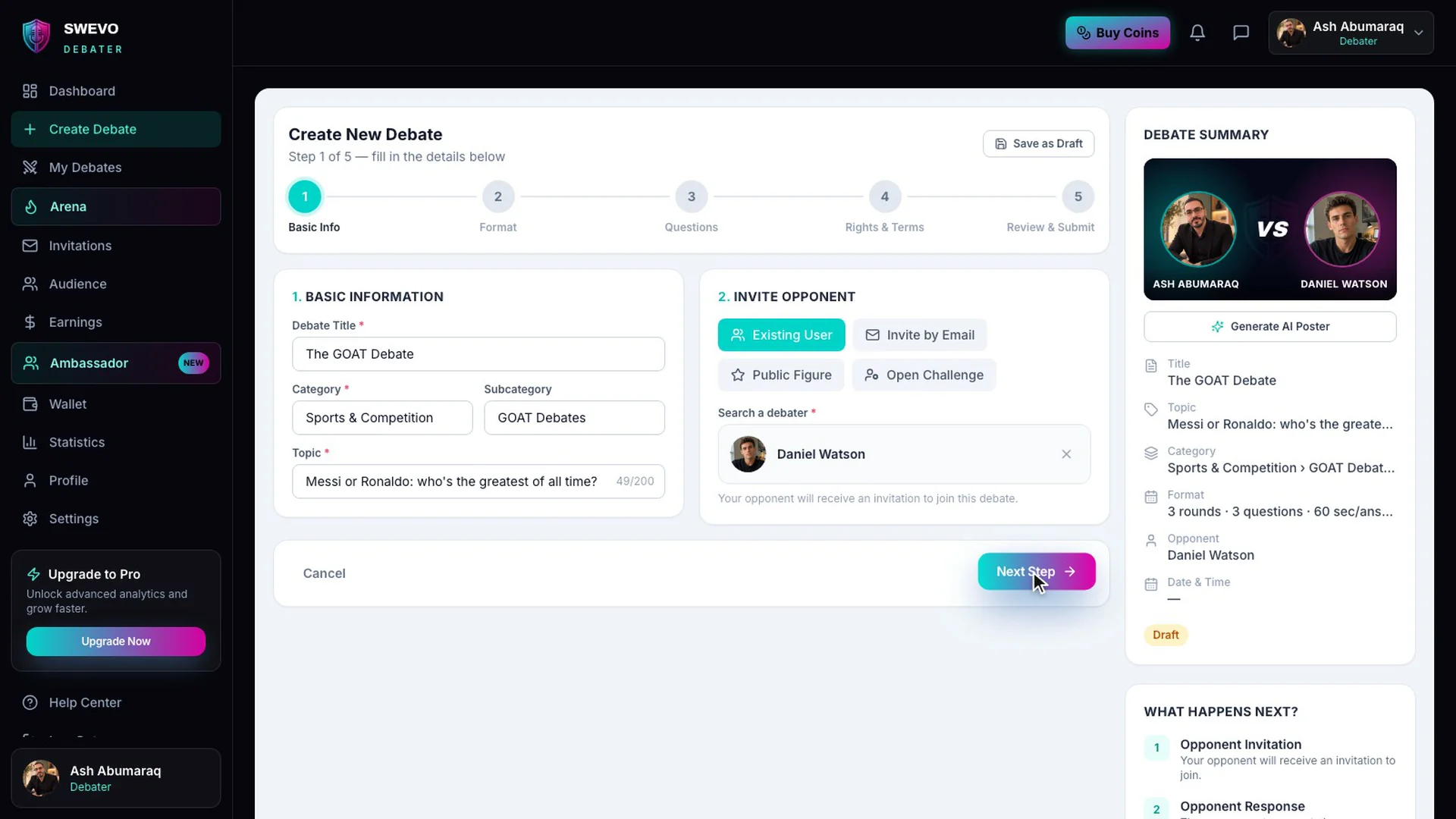
Step 1: Basic info and your opponent
Start with the essentials:
- Debate Title. A short, punchy name for the event. For example, "The GOAT Debate".
- Category and Subcategory. These decide where your debate appears when people browse debate categories. Our example sits in Sports & Competition, under GOAT Debates.
- Topic. The exact question you will argue about, up to 200 characters. This is what the audience votes on, so make it specific.
Choosing your opponent
Next to the basic info, you will see four ways to invite an opponent:
- Existing User. Search registered Swevo debaters by name and pick one. They get an invitation once your debate is approved.
- Invite by Email. Know someone who is not on Swevo yet? Enter their email and they will be invited to join.
- Public Figure. Start typing a name and Swevo searches real public figures, with photos, so you can challenge someone well known.
- Open Challenge. Passionate about a topic but no one in mind? Post it as an Open Challenge and Swevo finds a challenger to take the other side.
When you pick someone, their photo appears opposite yours in the summary panel, so you can see the matchup take shape.
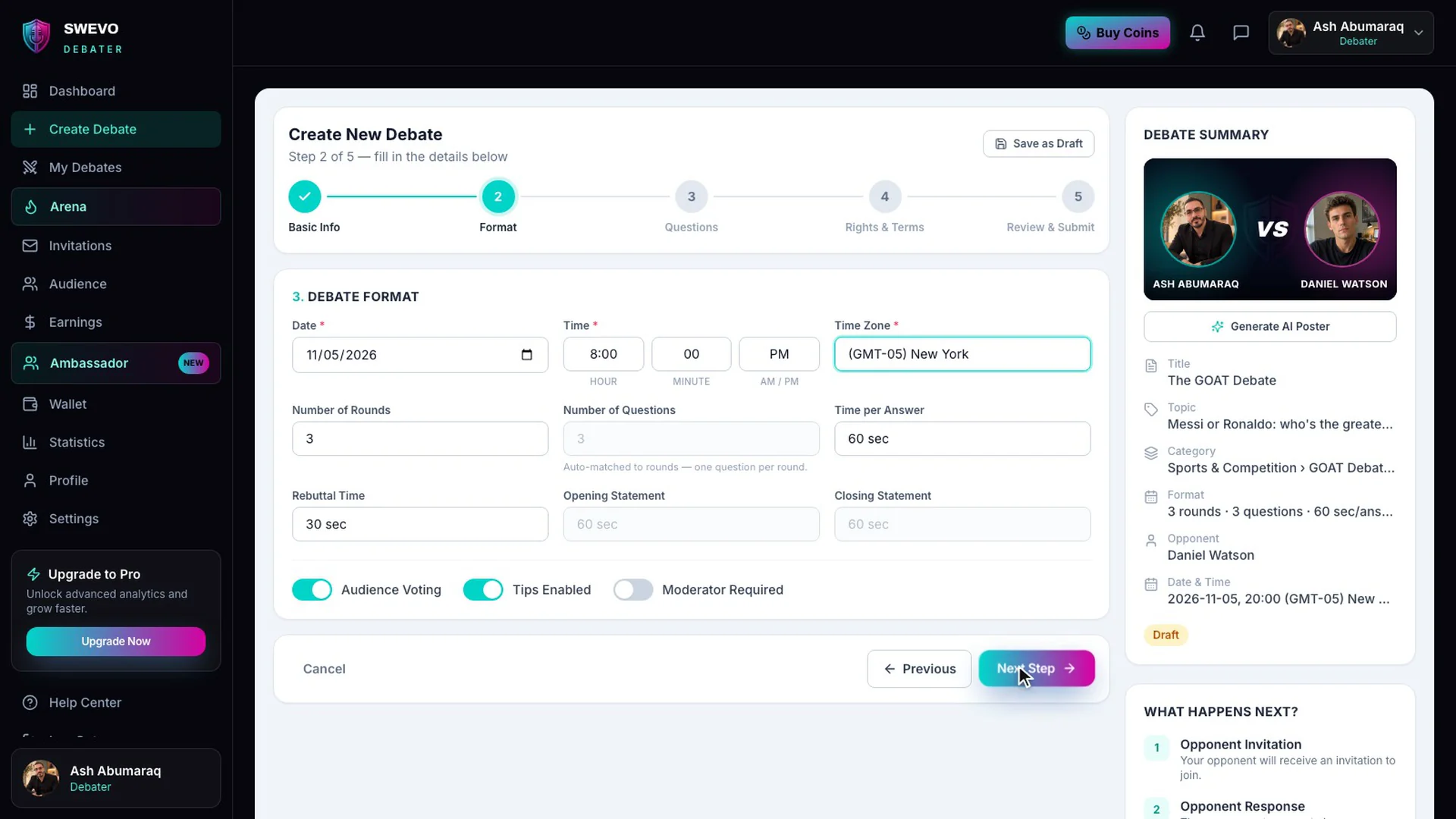
This is where you decide when the debate happens and how it runs.
- Date, Time and Time Zone. Pick a time that suits both of you and your audience. The time zone list covers every region, so viewers anywhere see the right local time.
- Number of Rounds. From 1 to 5. Each round is built around one question, so the number of questions always matches the number of rounds.
- Time per Answer and Rebuttal Time. From 30 seconds up to 5 minutes each. Shorter answers keep the pace high; longer ones suit deeper topics.
Below those, three switches shape the audience experience:
- Audience Voting. Lets viewers vote on who made the stronger argument. Leave it on: voting is a big part of what makes a Swevo debate fun to watch.
- Tips Enabled. Lets the audience send tips during the debate. Debaters keep 65% of every tip.
- Moderator Required. Turn this on if you want a moderator in the room to keep things on track.
If this is your first debate, the defaults are a good starting point: 3 rounds, 60 seconds per answer and 30 seconds for rebuttals.
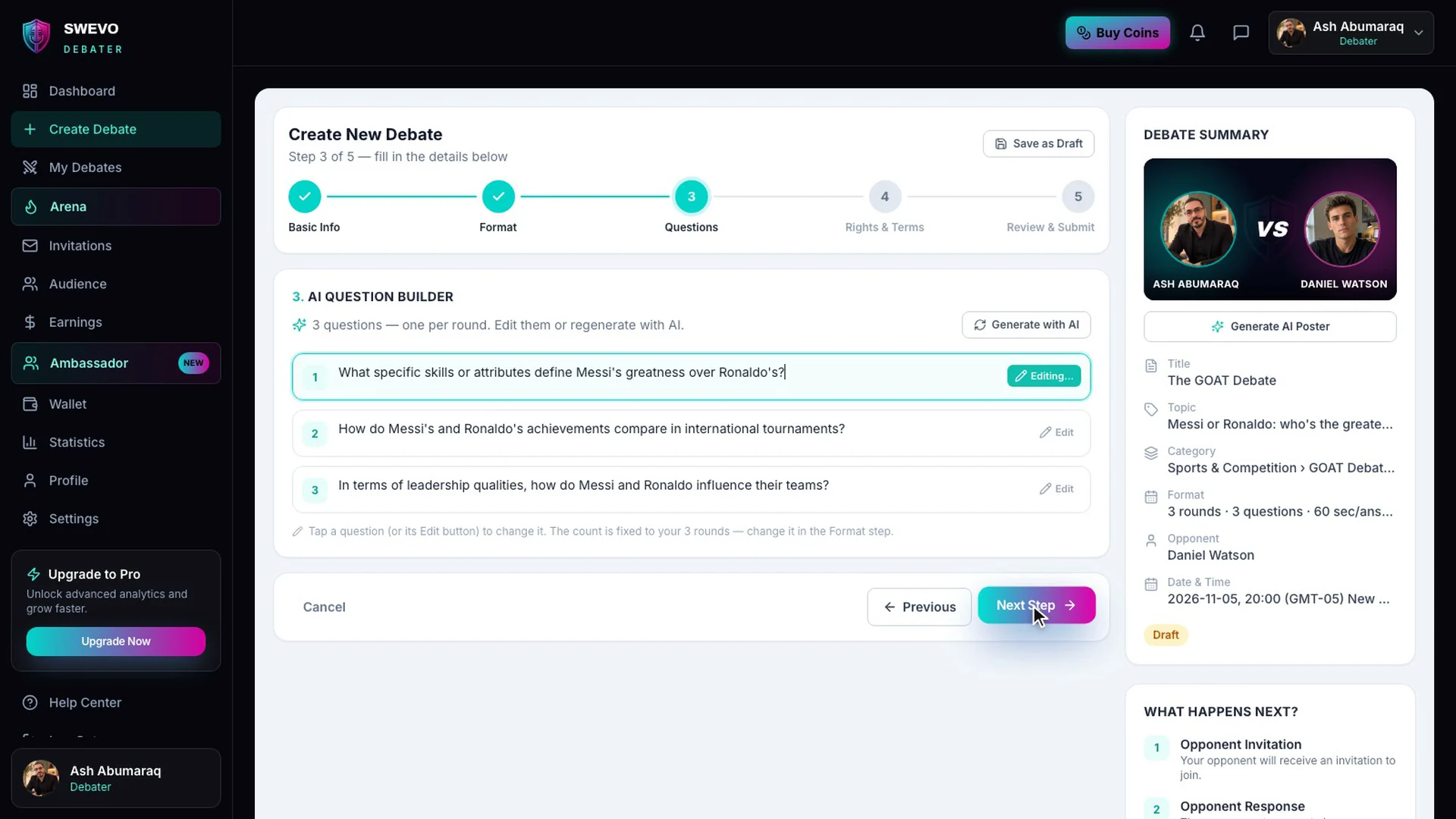
As soon as you open this step, Swevo's AI writes a starting set of questions based on your topic, one per round. For the GOAT debate, that meant questions about playmaking, leadership and individual awards.
You are in full control of the final wording:
- Click any question (or its Edit button) to rewrite it in your own words.
- Click Generate with AI for a fresh set if the first one does not fit.
A good debate question can be argued from both sides. If one answer is obviously right, rewrite it until it is not.
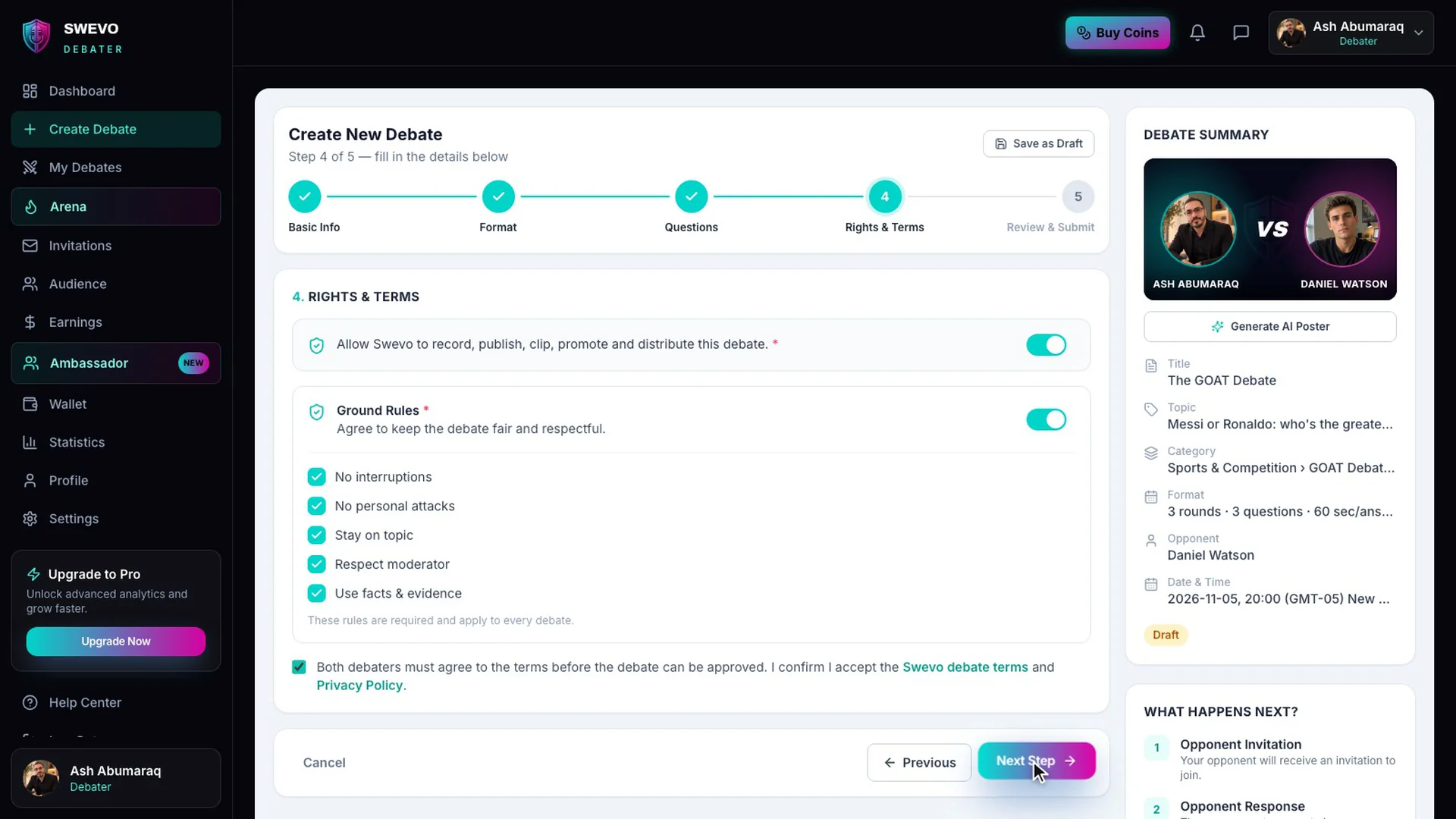
Three quick agreements keep every debate fair:
- Recording and distribution. Allow Swevo to record, publish, clip and promote the debate, so it can reach a bigger audience after the live event.
- Ground rules. Turn this on to agree to the five rules every debate follows: no interruptions, no personal attacks, stay on topic, respect the moderator, and use facts and evidence. You can read more in our community guidelines.
- Terms. Tick the box to accept the debate terms and privacy policy. Both debaters accept these before a debate can be approved.
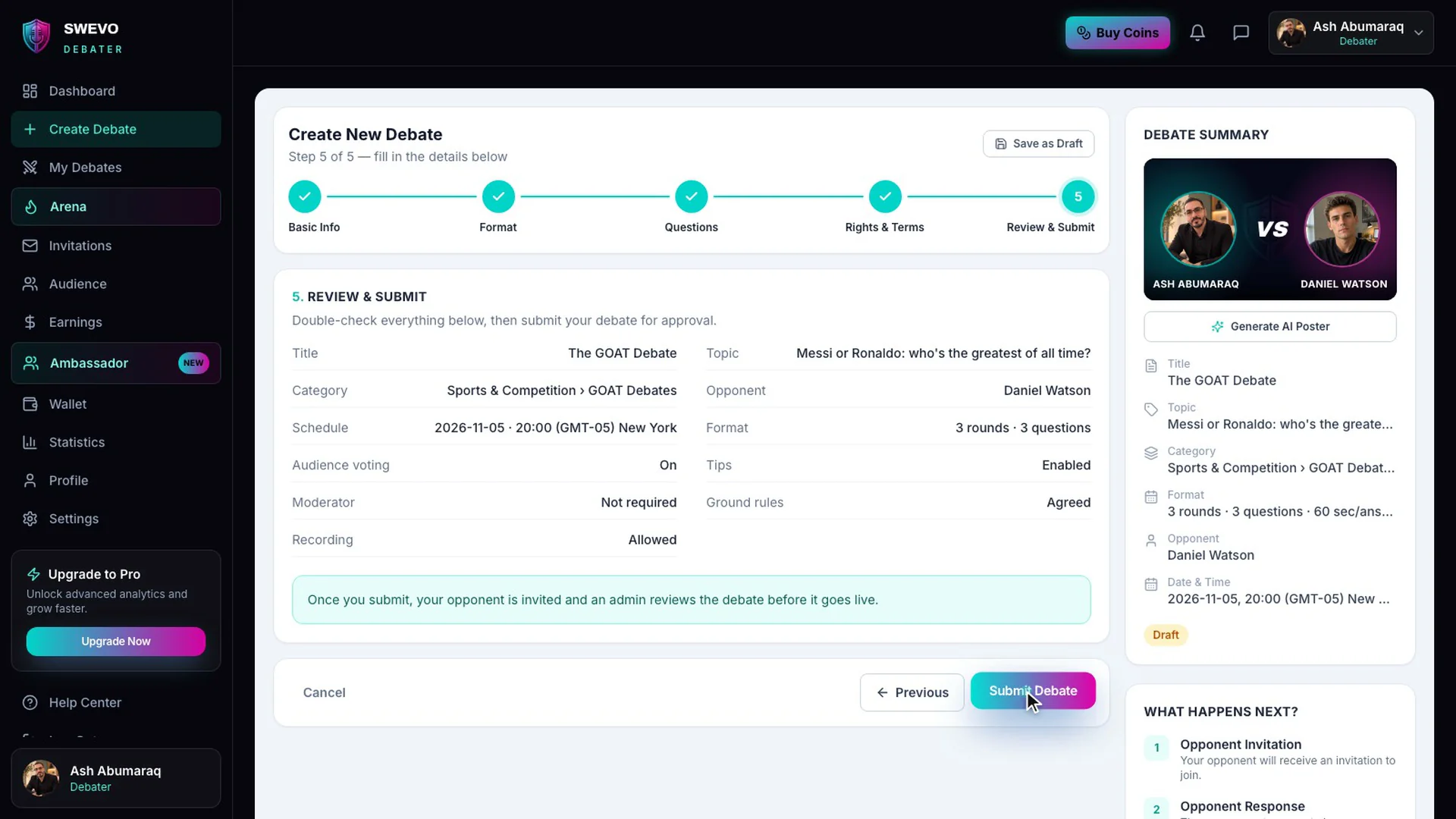
The last step shows everything on one page: title, topic, category, opponent, schedule, format and settings. Spotted a mistake? Click Previous to go back and fix it.
Not ready to send it yet? Click Save as Draft at any point in the wizard. Your progress is kept, and you can finish it later from My Debates.
When it all looks right, click Submit Debate.
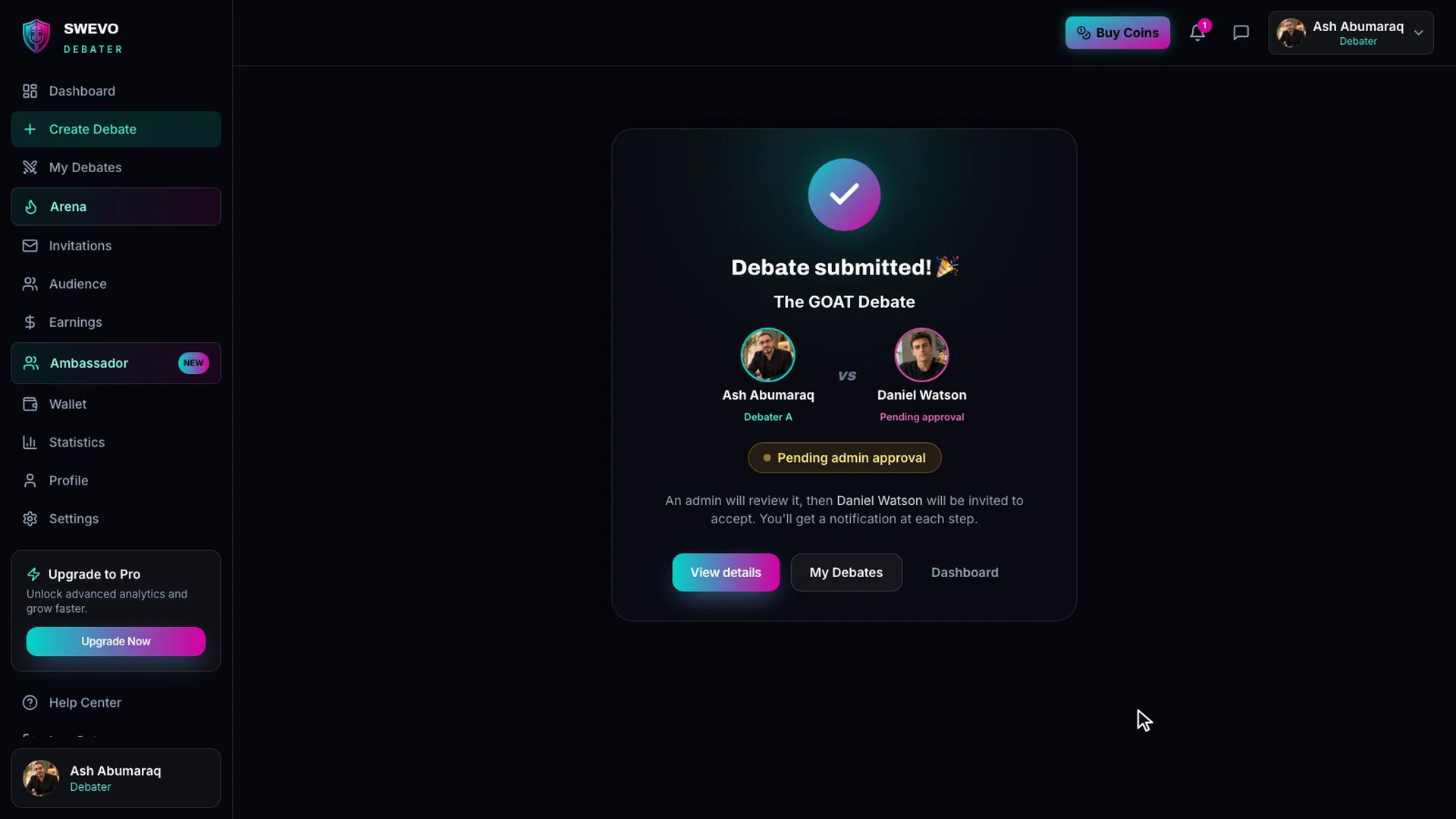
You will see a confirmation with you and your opponent side by side, marked "Pending admin approval". From there:
- The Swevo team reviews your debate. This keeps the arena high quality and on topic.
- Your opponent is invited. Once approved, they get an invitation to accept the debate.
- Your debate goes on the schedule. It appears in the arena, where people can find upcoming debates, mark themselves as interested and add it to their calendar.
You get a notification at every step, so you always know where things stand.
- Pick a question people already argue about. Sports rivalries, technology, work and everyday choices all draw a crowd.
- Keep the title short. It is the first thing people see when they browse the arena.
- Choose an evenly matched opponent. Close debates are the most fun to watch and to vote on.
- Share it once it is scheduled. Your own followers are often your first audience.
New to the format? How Swevo works explains the arena, rounds and audience voting in more detail.
Ready to try it? Open your dashboard, click Create Debate, and put your first question to the arena.
Join Swevo — where ideas clash, minds challenge, and the audience decides.