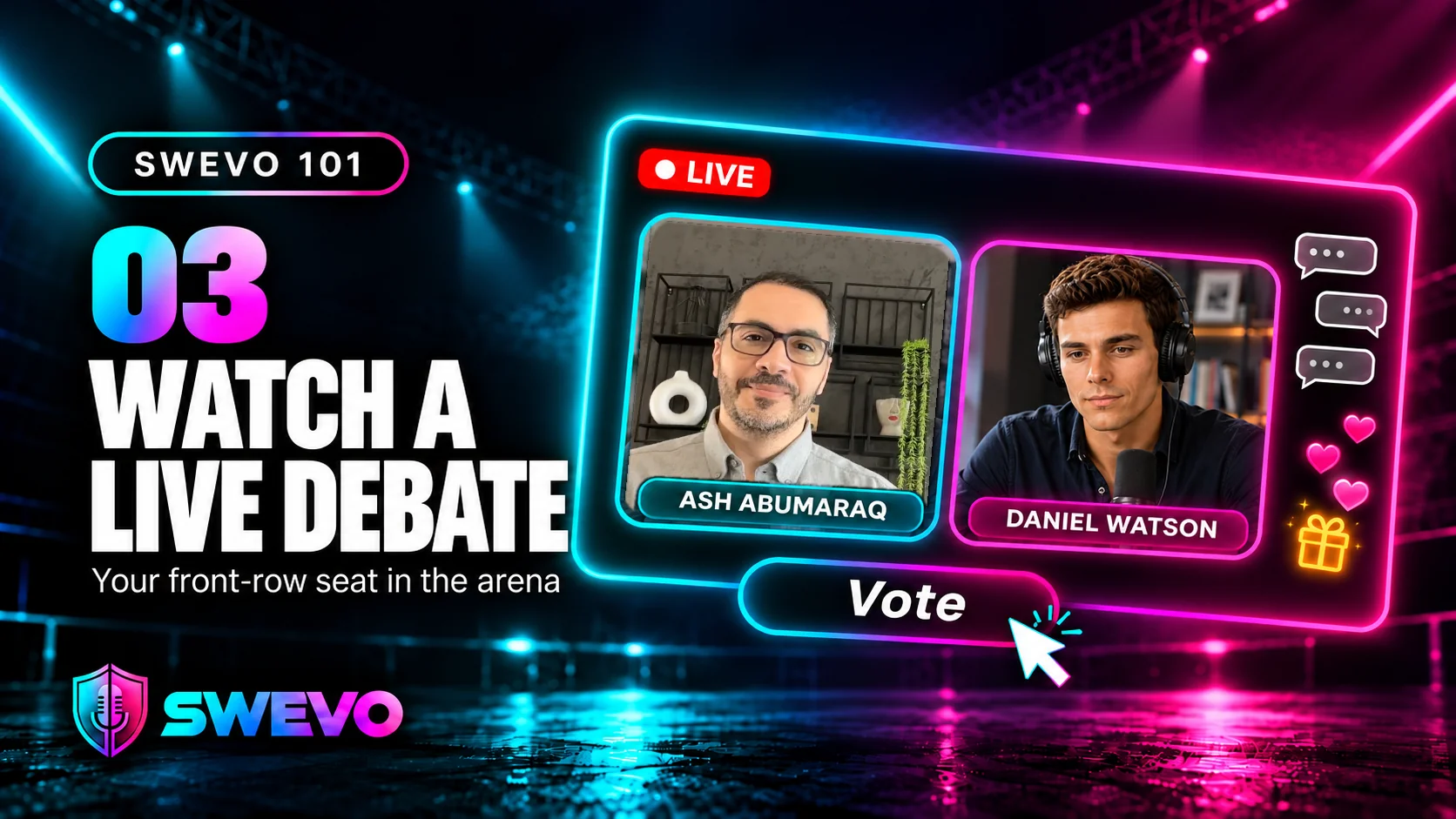
A live debate on Swevo is not something you watch from the sidelines. The audience chats, asks the questions, backs the debaters with tips and gifts, and votes on who made the stronger argument. You are not just watching the show. You are part of it.
This guide walks through everything you can do as a viewer, from finding a debate to the moment the floor opens after the winner is announced.
Prefer to watch? Here is the whole tour in under two minutes.
Start on the Debates page. Live debates sit at the top, and the tabs let you jump straight to what you want: Live Now, Upcoming, Open Challenges and Past Debates. The Coming up next list on the right shows what is starting soon, with the date and time of each one.

Click any debate to open its page. You will see the motion, the two debaters, the format and a countdown to the start.
If the debate you want has not started, click Add to calendar on its page. You can add it to Google Calendar, Apple Calendar or Outlook, or download an .ics file for any other calendar app. The debate lands in your calendar with its start time, so you never miss the opening bell.

Open a debate before it starts and you land in the waiting room. It shows both debaters, the motion and a note that the debate will start soon. You do not need to refresh: the doors open a few minutes before the start, and you are taken into the arena automatically.

Get there early. The chat warms up before the first question, and you will not miss the opening.
Step 4: Understand the stage
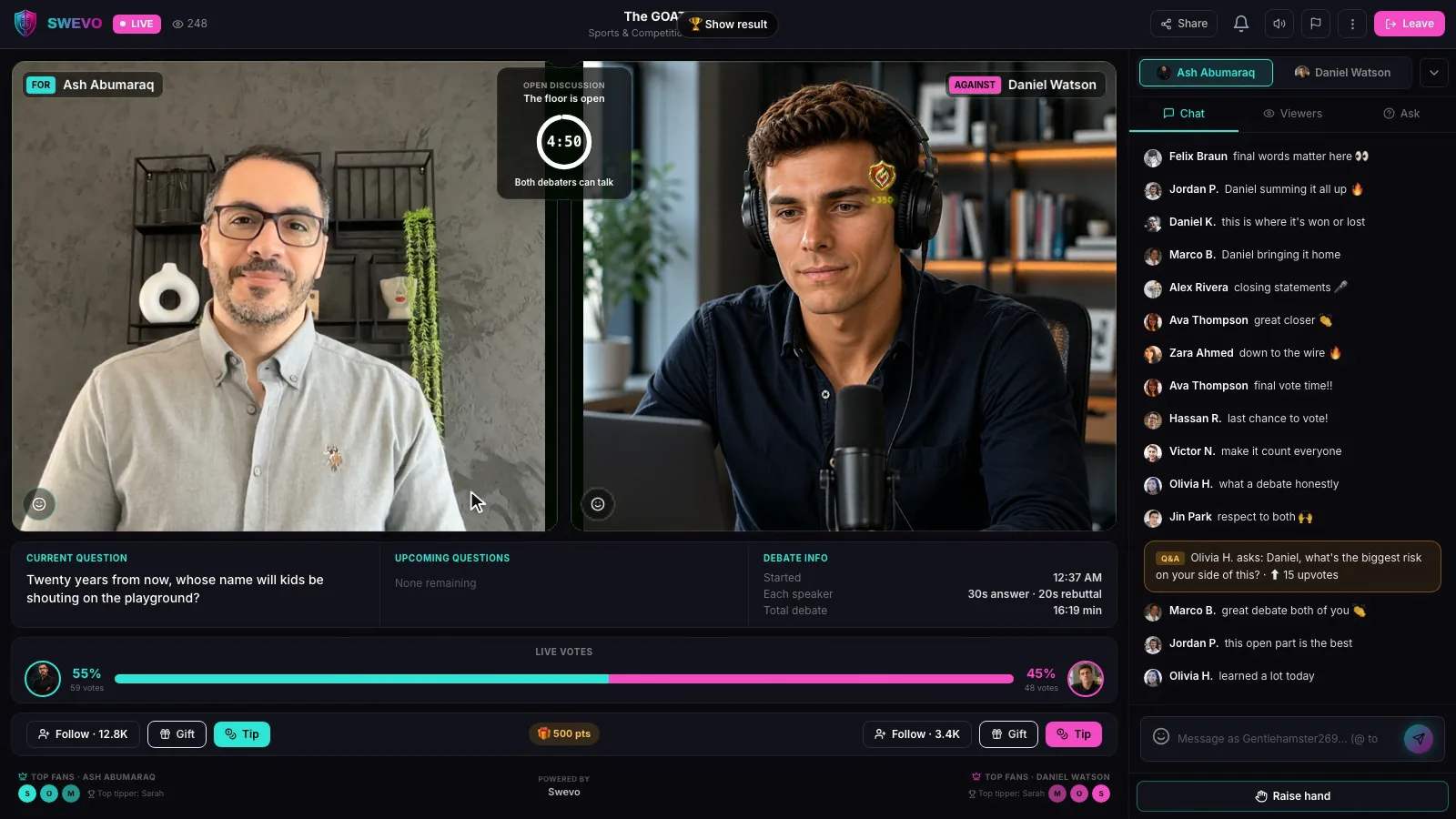
Once you are in, here is what you are looking at:
- Two video tiles. One debater argues For, the other Against, and each tile is labelled so you always know who is on which side.
- The round card. Each round opens with a question. It appears in the middle of the stage, with a short reading time and the speaking order for that round, such as an answer from each debater followed by a rebuttal from each.
- The clock. Between the tiles, the clock shows who is speaking and how long they have left. When it runs low it turns red, and when the timer ends, the next debater's mic switches on automatically.

Below the stage you can see the current question, the questions still to come and the debate info, so you never lose track of where the debate is.

Step 5: Check out the debaters and follow them
Want to know who you are watching? At the top of the right-hand panel, click a debater's name to open their profile right inside the arena: their bio, wins, losses and followers.
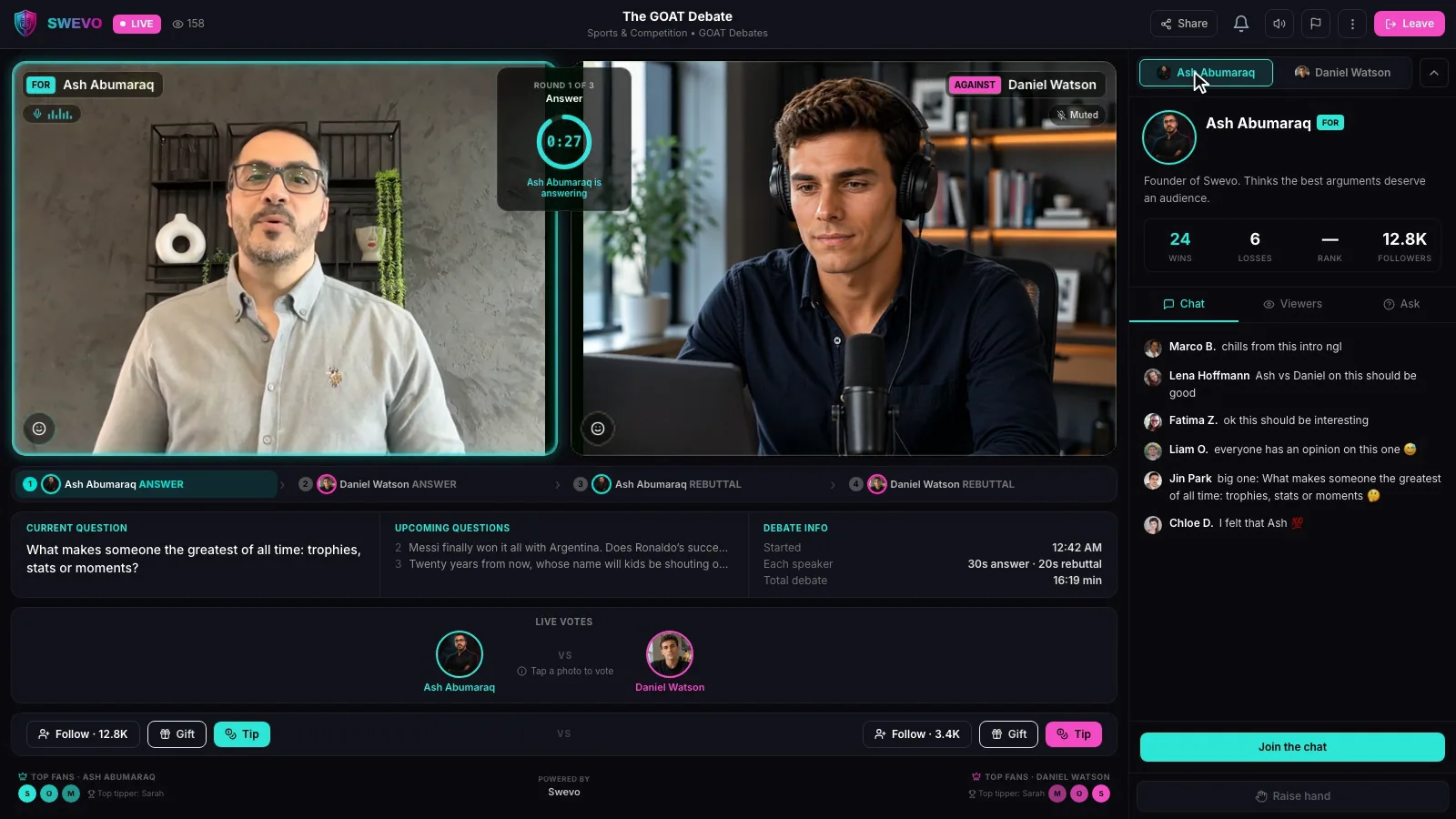
Like what you hear? Hit Follow under their video tile, and you will hear about their next debate. To learn how debaters build those profiles, see how to set up your debater profile on Swevo.
The Chat tab is where the crowd lives. Click Join the chat, then sign in or tap Continue as guest to jump straight in. Guests get a random name and some free points to try out tips and gifts.

Cheer for your side, react to a great point, heckle a weak one. Just keep it respectful: you are arguing with ideas, not people.
Got a question you want answered? Open the Ask tab, type it in and click Ask. Your question joins the list where everyone can see it.
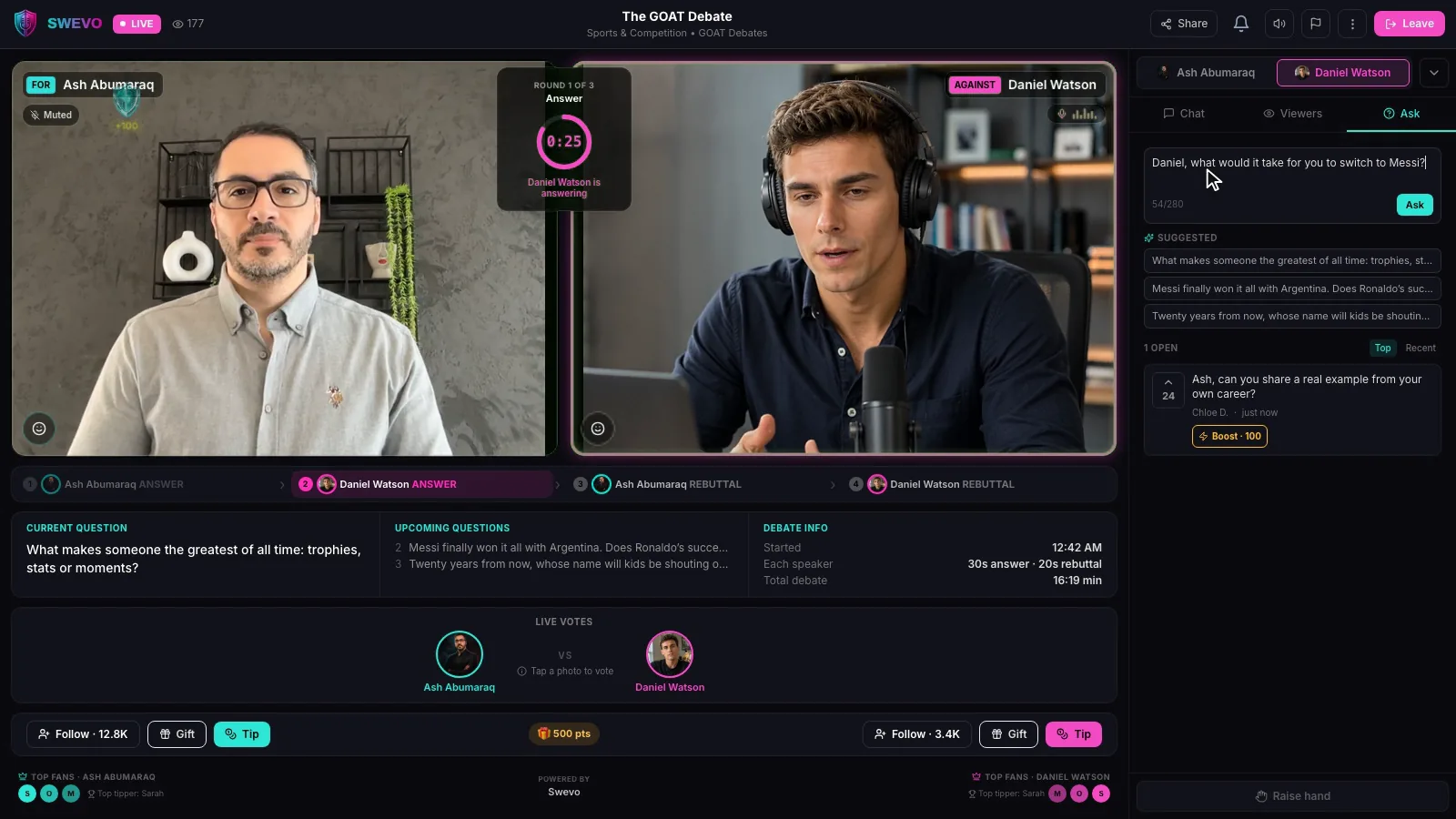
Scroll the list and upvote the questions you want answered most. The best ones rise to the top, ready for when the floor opens at the end.
If you have collected free Coins, for example by completing your profile, this is where they go. Under each debater's video tile are two buttons:
- Tip lets you choose an amount and the debater you want to back, then confirm. A confirmation pops up as soon as it is sent.
- Gift opens a grid of animated gifts. Pick one and send it, and it floats across the stage for everyone to see.
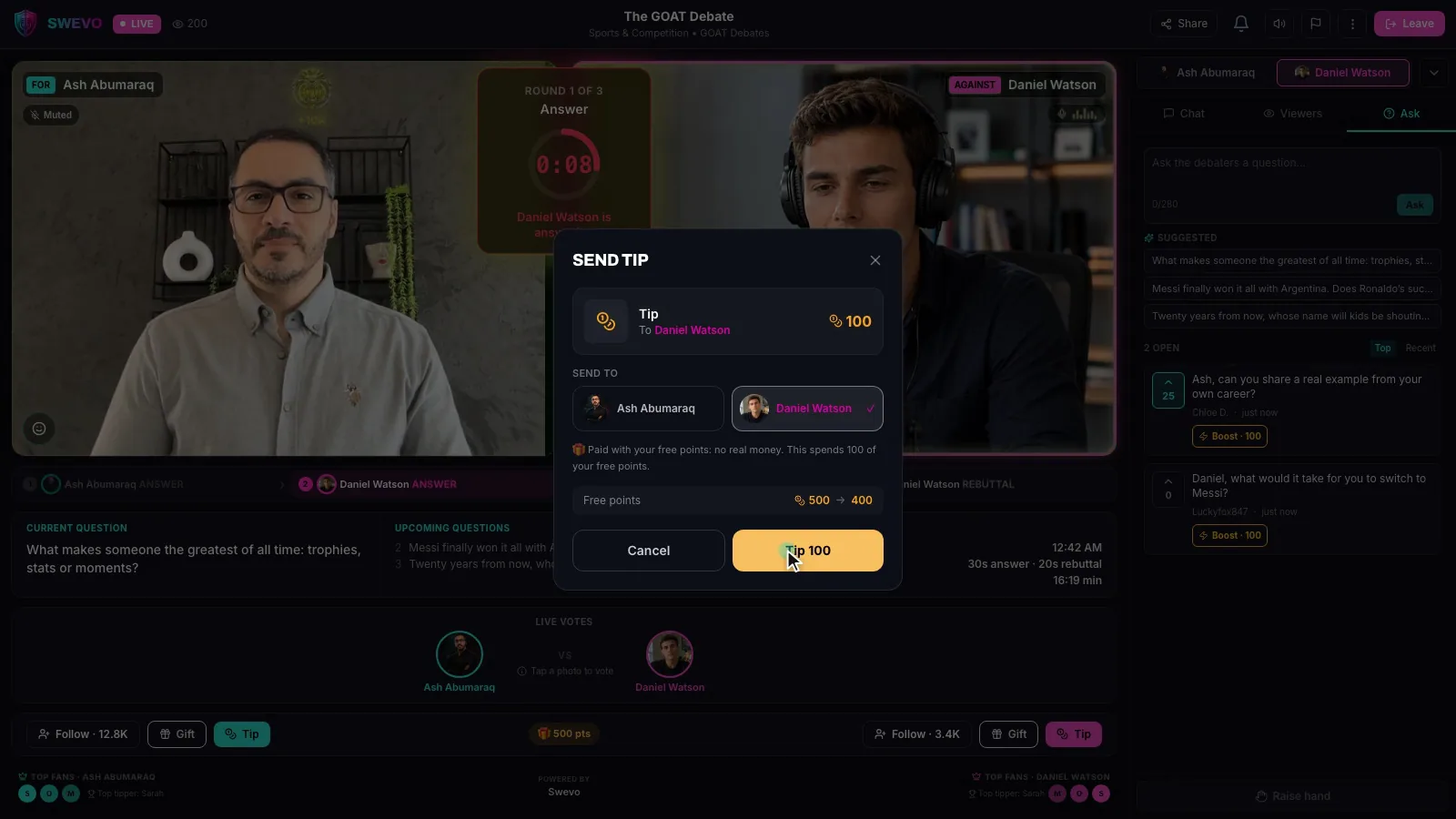

Tips and gifts are how you tell a debater they are winning you over, in the moment, while everyone is watching.
When a round ends, a voting card appears with one question: who made the stronger argument? Vote for the better case, not just the side you already agreed with. You only have a few seconds, so trust your gut.
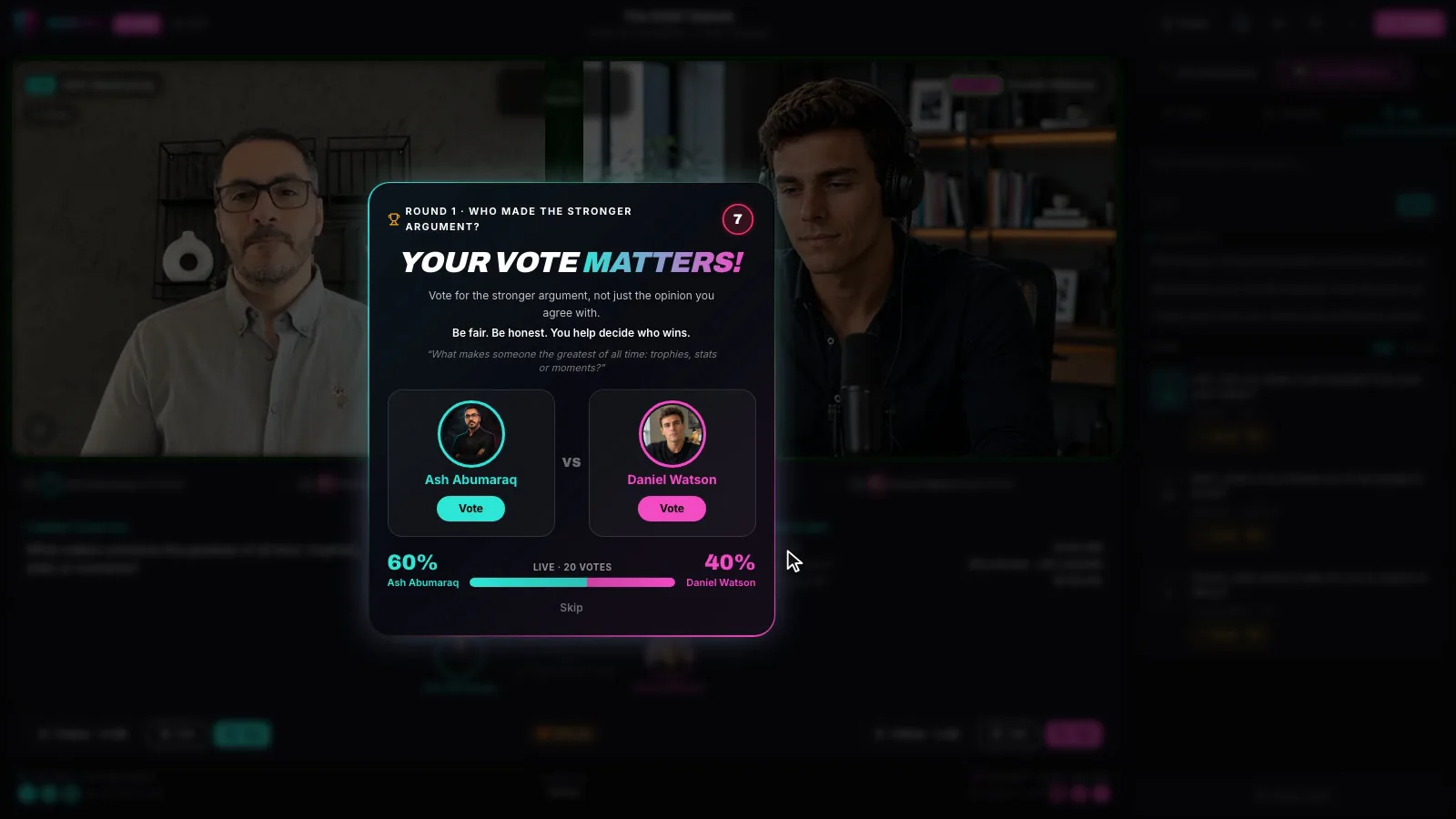
You will see the live split between the two debaters, and the bar at the bottom of the stage tracks the audience vote as the debate goes on.
After the last round comes the final vote: who won the debate? Once the votes are in, the winner is announced on stage.
But do not leave yet. After the result, the floor opens: both mics go live, and the debaters take questions from the audience, including the ones you asked and upvoted earlier.
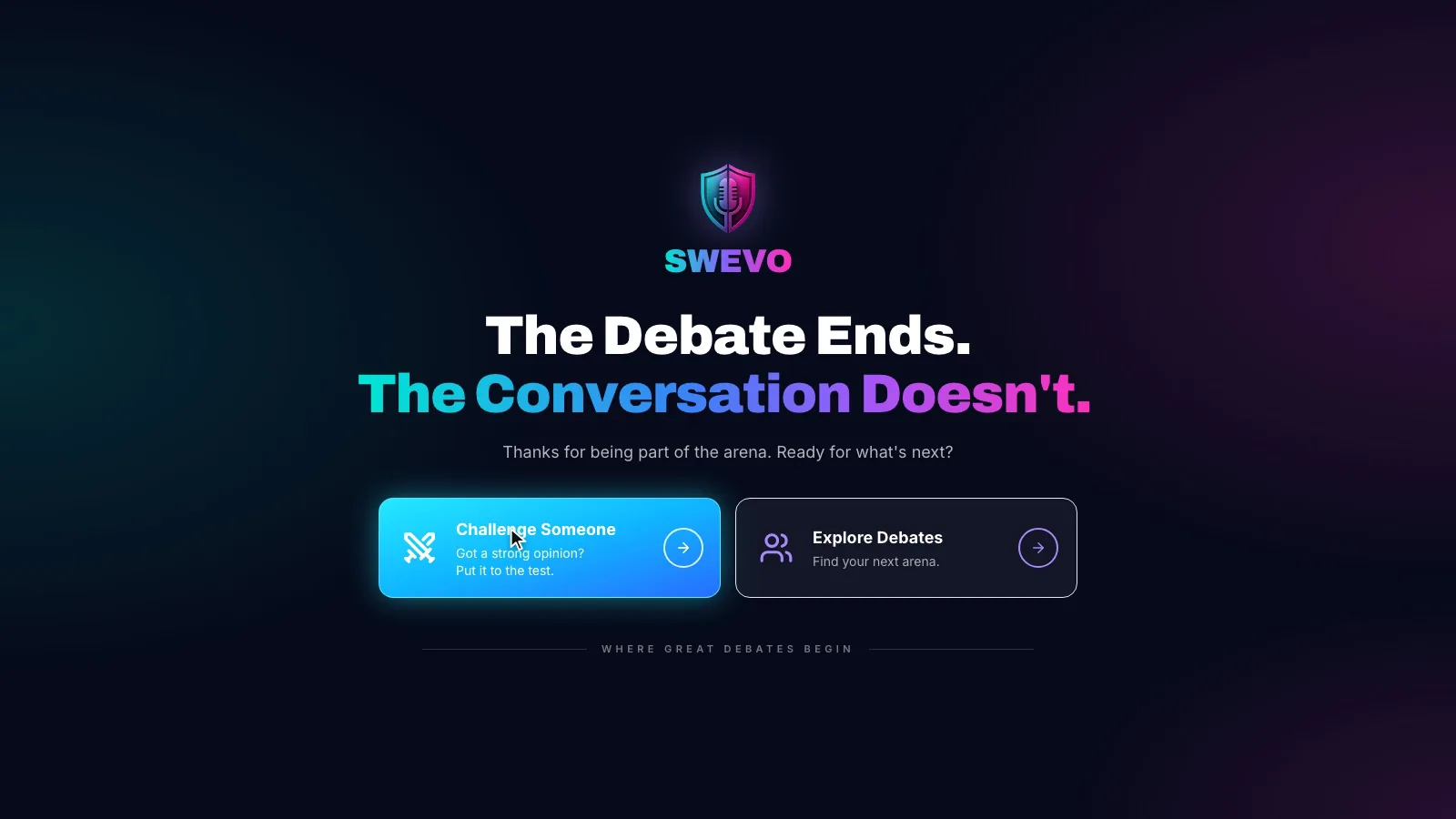
When the debate wraps up, you will see one last screen: the debate ends, but the conversation does not. From here you can:
- Challenge someone and start a debate of your own on a topic you care about.
- Explore debates and find the next one worth watching.
Felt like you could have made a stronger case yourself? Learn how to create a debate on Swevo, see how Swevo works from start to finish, or head back to the Debates page and grab a seat for the next one. See you in the arena.